Using Wiggle
Set up your home
Wiggle asks a few short questions, then connects your supplier and your appliances. You can finish most of it later.
The stages, in order
- Welcome. Select Get started.
- Notifications. Select Enable notifications, or Skip this step. You can change this later in Settings.
- Set up this home. Choose your supplier and connect Octopus. Octopus is the only supplier that Wiggle connects to at the moment.
- About this home. Check the home name and postcode district. Wiggle fills them in from your Octopus account where it can.
- Add your devices. Select Link beside each device in the home, then Open home. You can also select Skip for now and add them later.
If your tariff's hours are set at the meter, Wiggle also asks when your cheap rate starts. If you do not know, select I'm not sure yet. You can change this at any time in Settings.
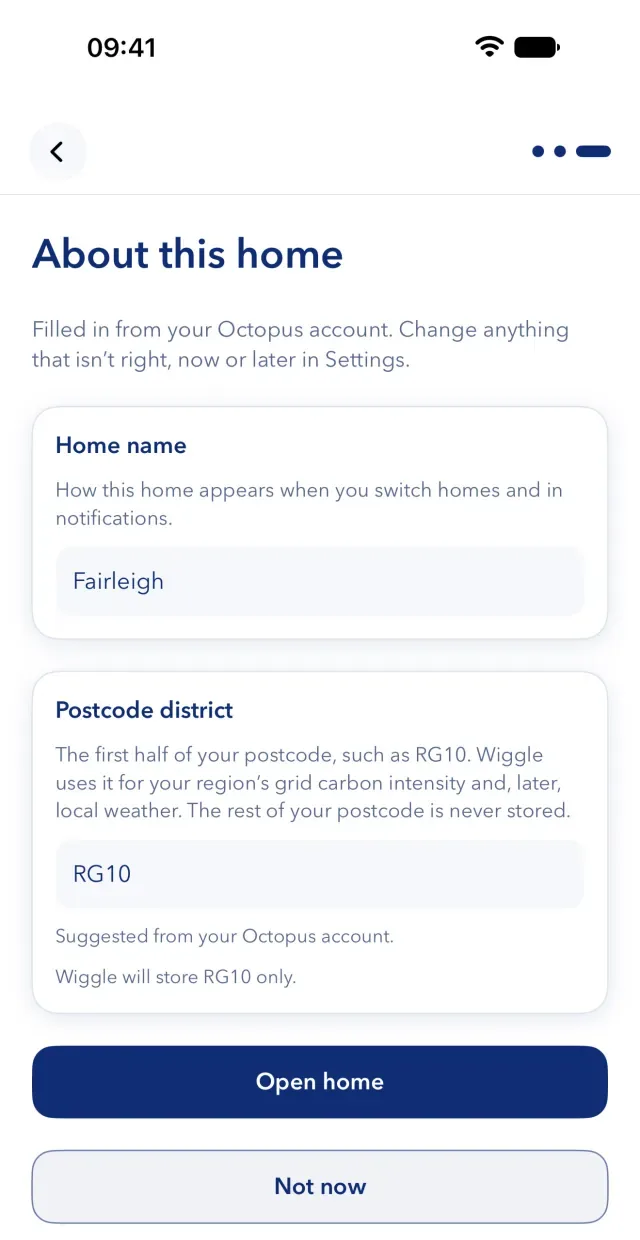
Why Wiggle asks for your postcode district
The district is the first half of your postcode, such as RG10. Wiggle uses it for your region's grid carbon intensity and for local weather. Wiggle never stores the rest of your postcode. The district is optional, and you can change it later in Settings, under Your home. If you do not add one, the Timeline cannot show your region's carbon intensity.
If you stop part of the way
- If you select Finish later at the supplier stage, Wiggle asks again the next time you open the app, until Octopus is connected.
- If you select Not now at About this home, Wiggle keeps the current name. You can rename the home later.
- If you skip the devices, add them in Settings, then Connections.
If you joined someone else's home
You do not need to do the setup. The home's owner connects the supplier and the appliances. You choose only your notifications.
Rename a home, or add another
- To rename a home, open Settings, then Your homes. Open the home's menu and select Rename. Only an owner can do this, and everyone in the home sees the new name.
- To add a home, open Settings, then Your homes, and select Add a home (+ on iPhone). Each home has its own supplier, devices and alerts.
Still stuck?
Email support@wiggle.energy, or use Report an issue in the app. We aim to reply within one working day.