Using Wiggle
Choose your notifications
Wiggle can tell you when something changes at home. You choose which types you get, and you can choose quiet hours.
Turn notifications on
- Open Settings, then Notifications.
- Turn on Send me notifications.
- If your phone or browser asks, allow notifications for Wiggle.
- Under Tell me about, turn off any types that you do not want.
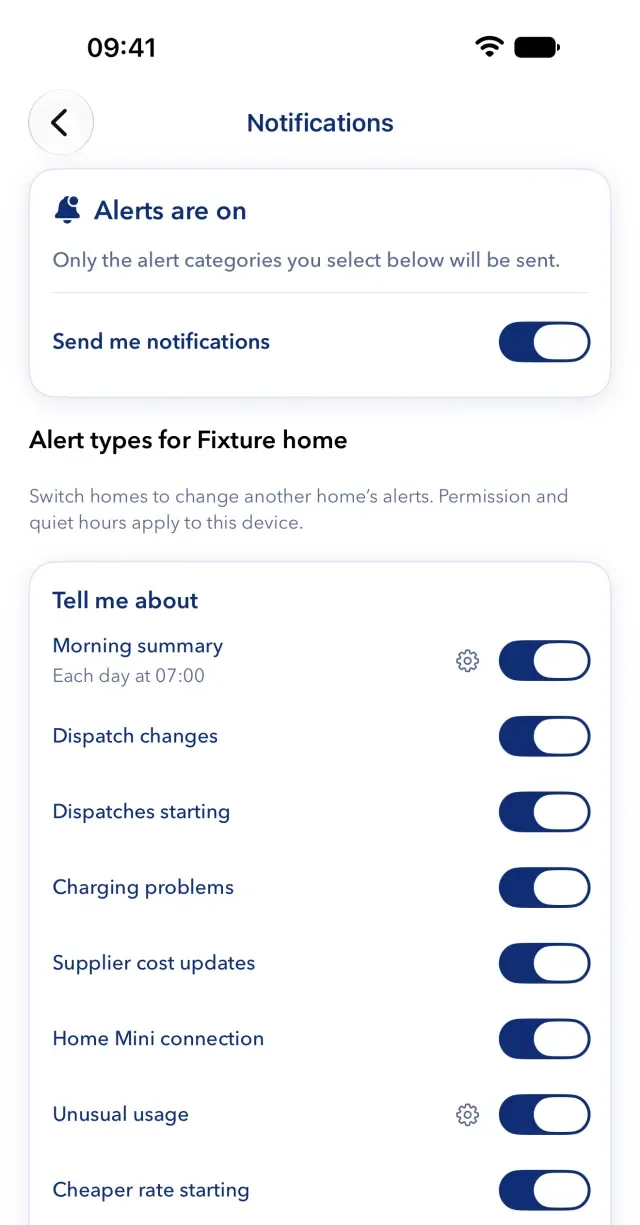
If it says "Alerts are disabled in Settings", allow notifications for Wiggle in your phone's settings. On iPhone and iPad, the web app can send notifications only if you open Wiggle from its Home Screen icon.
What each type sends
- Morning summary. A short summary of the day ahead, including the cheapest times. Wiggle sends nothing on a day with nothing to say.
- Dispatch changes. Octopus changes the charging plan.
- Dispatches starting. The charging window that Octopus planned has begun.
- Charging problems. The car is not charging when Octopus planned it, stops early, or charges when it should not.
- Supplier cost updates. Octopus corrects the cost of a charging period.
- Home Mini connection. Your energy data stops updating, or starts again.
- Unusual usage. Something runs at a high rate while it is still running.
- Cheaper rate starting. Your cheapest rate begins.
- Worth acting on. An unusually cheap or clean period starts in an hour, or an event is announced.
- Your timed changes. A change that you scheduled does not start, or could not be put back afterwards.
Wiggle hides Unusual usage and Cheaper rate starting on a flat tariff.
Quiet hours
Turn on quiet hours in the same screen. They start at 22:00 and end at 07:00 until you change them. Most alerts wait until quiet hours end. Your morning summary stays at its chosen time.
Who a setting applies to
- Types and quiet hours apply to this device. Types also apply to one home, so switch homes to change another home's alerts.
- The morning summary's time, the high-use level and the cheap and expensive rates are shared. If a member changes one, it changes for everyone in the home. Select the cog beside a type to change them.
Inbox and email
Select the bell to see your recent notifications. On iPhone and Android, you can silence a type from a notification in this list. Wiggle sends these alerts as notifications only, not by email.
Still stuck?
Email support@wiggle.energy, or use Report an issue in the app. We aim to reply within one working day.