Using Wiggle
Connect Octopus to Wiggle
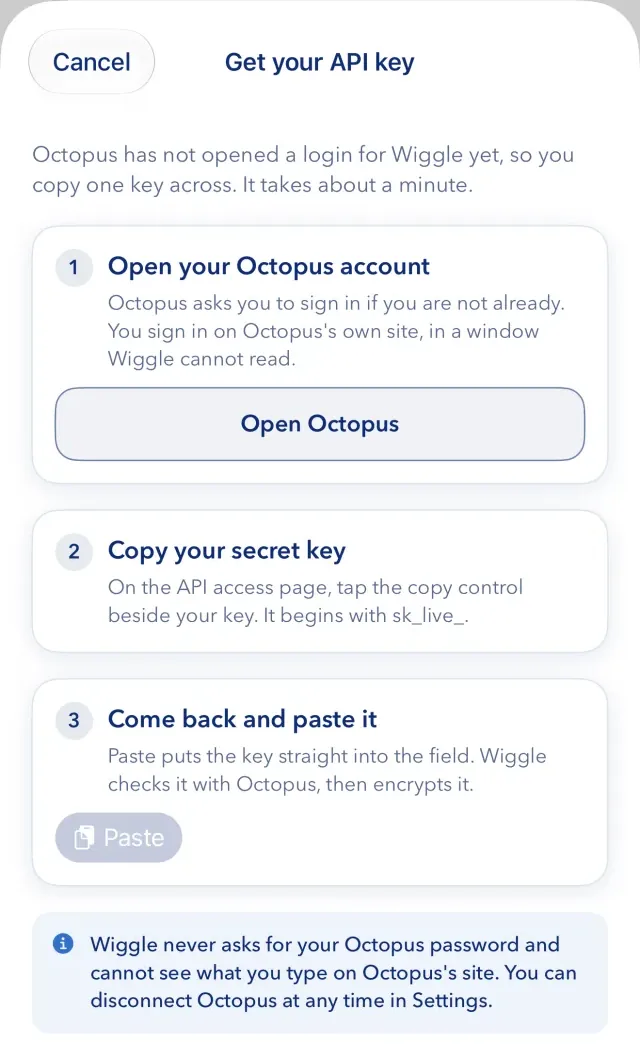
Wiggle reads your energy use, tariff and smart charging from Octopus. To connect, you copy one key from your Octopus account. It takes about a minute.
Only an owner of the home can connect Octopus. Wiggle never asks for your Octopus password, and it cannot see what you type on Octopus's site.
Connect your account
- Open the supplier step. During first setup, Wiggle shows it to you. Later, open Settings, then Connections, and select Change tariff.
- Choose Octopus, then select Get my key from Octopus.
- Select Open Octopus, and sign in on Octopus's own site if it asks you to.
- On the API access page, copy your key. It begins with
sk_live_. - Come back to Wiggle and paste the key into Octopus API key.
- Tick "Allow Wiggle to read my Octopus energy, tariff and smart charging data."
- Select Find properties.
If your account has one free property, Wiggle connects it. If it has several, choose the ones to set up. Each one becomes a home of its own. Choose by the time that the screen shows, or you must start again with the key.
Wiggle then imports your tariff, your Home Mini readings and your account history. When this is complete, it says "Octopus data ready".
Allow changes in Octopus
Beside the key is a switch called Allow changes in Octopus. If it is on, members of the home can boost the car, change its charging schedule and join Power Up and Power Down events in Wiggle. Wiggle sends Octopus only the changes that a member asks for or has turned on. If you turn it off, Wiggle only reads your Octopus data. Wiggle never uses the key to change your Octopus account or tariff.
Keep the key safe
Anyone with this key can read your Octopus account, so paste it only into services that you trust. Every app that you use it in shares the same key. If you make a new one, update it everywhere, including Wiggle.
If something goes wrong
- "Octopus could not validate this key." Copy the key again and paste it. Wiggle also shows this if it cannot reach Octopus, so if the key is correct, try again later.
- "No supported active electricity property was found." Wiggle needs an active electricity supply on the Octopus account.
- "Every property on this account is already connected to a home." Each property can belong to one home in Wiggle.
- "This supply cannot be connected. Try again." Start again from the key. Your choice of property may have expired.
- "Octopus needs reconnecting", or the status says Reconnect needed. Octopus refused the key. If you made a new key, enter it through Change tariff. If you are not an owner, ask an owner to do this.
- The status says Unavailable, Retrying or Delayed. You do not need to do anything. Wiggle keeps trying.
Use the same key for another home
If you entered a key for another home that you own, Wiggle asks "Which API key?" and offers it. You do not paste it again. Each home keeps its own encrypted copy, so disconnecting one home does not change the other.
See your key again
In Settings, then Connections, select Show API key and confirm that it is you. Only the owner who entered the key can do this. Wiggle hides the key again after a minute and emails you each time that it is viewed. You can view it up to five times in 24 hours.
Disconnect Octopus
- Open Settings, then Connections.
- Select Disconnect Octopus, then Disconnect.
Wiggle deletes its copy of the key for this home and stops reading Octopus. Readings already recorded stay in your history. The key still works at Octopus. To cancel it there, make a new API key in your Octopus account.
Still stuck?
Email support@wiggle.energy, or use Report an issue in the app. We aim to reply within one working day.