Using Wiggle
Read the Timeline
The Timeline shows your home's energy day: your use and rates on a chart, with what happened listed below it.
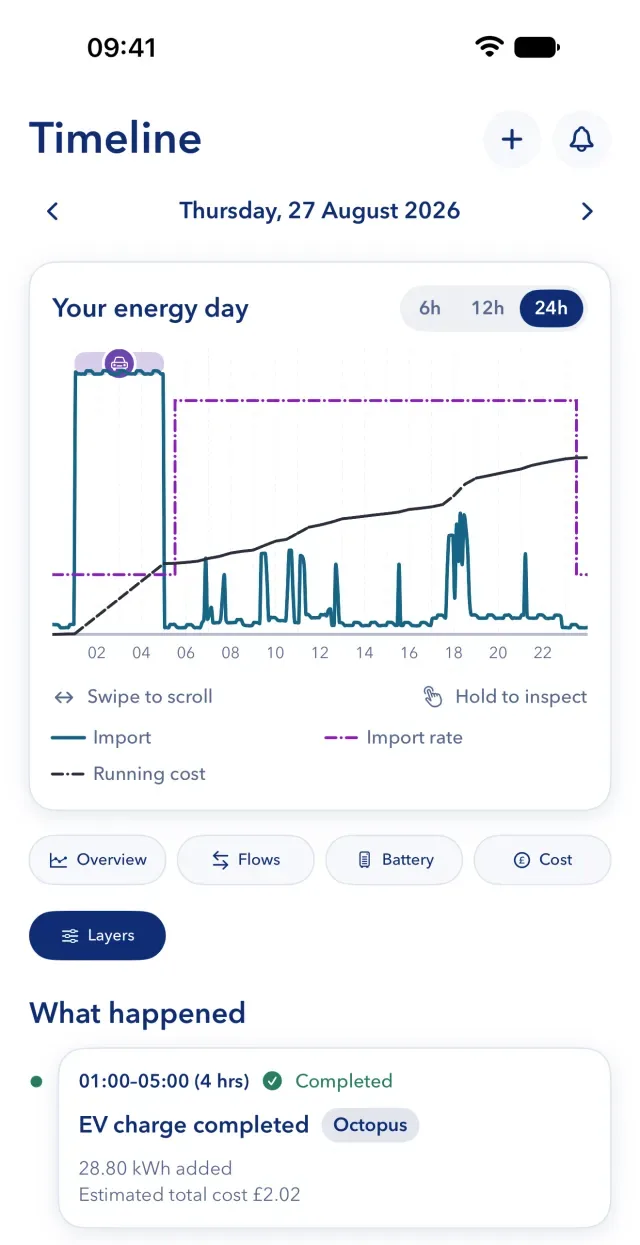
Move through the days
- Select the arrows beside the date to go to the previous or next day, or select the date to choose one.
- Select 6h, 12h or 24h to change how much of the day you see.
- Swipe to scroll along the day. If you drag past the edge, the next day opens.
Choose what the chart shows
Below the chart is a row of presets, such as Overview, Flows, Solar, Battery, EV and Cost. Wiggle offers only the presets that your home has data for. To choose each line yourself, select Layers. Each colour matches its line on the chart.
A layer that has no data stays in the list, greyed out, with the reason. A layer's help text says what it shows.
Read a value
Touch and hold the chart, then drag. The values at that time replace the legend. In the web app, you can also use the arrow keys. On Android, a tap also shows the values. Gaps in a line mean that readings are missing, and an estimated rate says "est.".
What the marks mean
- Now. A dashed vertical line marks the current time.
- Octopus smart charging. Shaded bands at the top of the chart, each with a car marker, are Octopus's smart-charge windows. A dashed outline means that Octopus has planned a charge but the car is not plugged in, or Wiggle cannot confirm it is.
- Power Up and Power Down. A band with an up or down arrow marks an Octopus event. Its fill is stronger if the home joined.
- Usage breakdown. The shaded parts add up to what the meter measured, but the split itself is estimated.
Below the chart
The list shows what happened on that day, such as a charge or a data problem. Select All activity to see everything recorded for the day.
Messages that you may see
- "No actions on this day". The chart still shows the energy and tariff data for the day.
- "Fetching this day from Octopus…". Wiggle stores what Octopus returns, so the day loads normally next time.
- "No Octopus history for this day". Octopus returned nothing for that date.
- "Couldn't fetch this day". Your existing record has not changed. Select Try fetching again when Octopus is available.
Figures on the chart can change when late data arrives. See why your figures can change.
Still stuck?
Email support@wiggle.energy, or use Report an issue in the app. We aim to reply within one working day.