Using Wiggle
Add people to your home
Everyone in your home can see its energy with their own sign-in. If you are an owner, you can invite them by email.
Invite someone
- Open Settings, then People in this home.
- Under Invite someone, enter their email address.
- Select Send invitation.
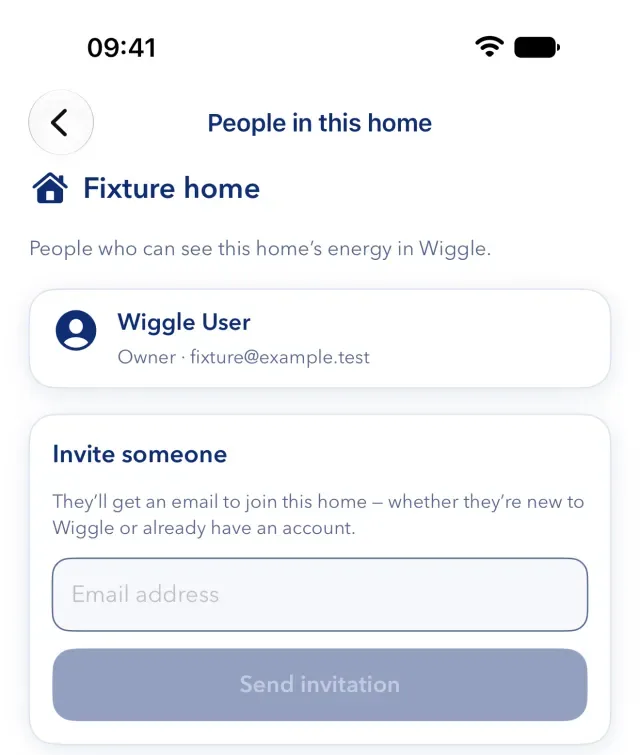
They get an email to join the home, whether they are new to Wiggle or already have an account. An invitation works once and lasts 48 hours. You can send up to 10 invitations in 24 hours.
Manage an invitation
- To send it again, send a new invitation to the same address. This ends the older one.
- To cancel it, select Revoke beside it under Pending invitations.
Accept an invitation
Open the link in the email. If you already have an account, sign in first, using the address that the invitation went to. If you are new, Wiggle asks you to create an account with the invitation code. In the web app, you can use the code in the Join a home card.
If Wiggle says that the invitation "is invalid or has expired", ask the person who invited you for a new one.
What owners and members can do
Every invitation adds a person as a member.
- Everyone can see the home's energy and its connections, see who is in the home, ask for a change to an appliance, and change household settings such as the alert levels.
- Owners can also invite and remove people, connect or disconnect Octopus and appliances, change the postcode district, and rename or delete the home. Only owners see the email addresses of other people in the home.
You cannot change a person's role in the app at the moment.
Remove someone
- Open Settings, then People in this home.
- Select Remove on their row, then confirm.
They lose access to this home and stop getting its notifications. They keep their Wiggle account. If you want to leave a home yourself, see leave or delete a home.
Still stuck?
Email support@wiggle.energy, or use Report an issue in the app. We aim to reply within one working day.